
How to Record Audio of a meeting using Meetbook
Lisa••2 min
Step 1: Log In
Go to the Meetbook and Login using your credentials. If you don't have one yet, click on Create a New One to create your account.
Step 2: Select Record
On your main Dashboard, click the Record button to start the setup.

Step 3: Grant Audio Permissions
A prompt will appear asking for permission to use your microphone. Click Allow so Meetbook can capture the audio clearly.

Step 4: Recording Started
You are all set! The audio recording has been started.Once your meeting is finished, click the Stop button on your Meetbook dashboard to end the session and save your recording.

Step 5: Accessing Recorded Meetings
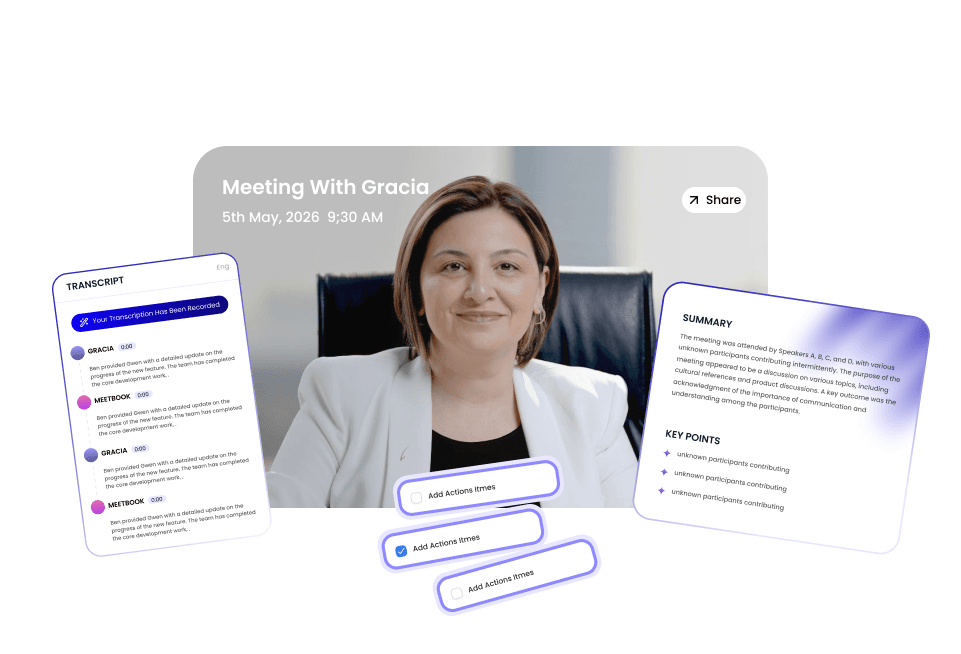
On the sidebar of dashboard, click on the My Meetings tab, this will open the list of all recorded meetings.Click on the most recent meeting to view it's summary, recording, action items etc.


