
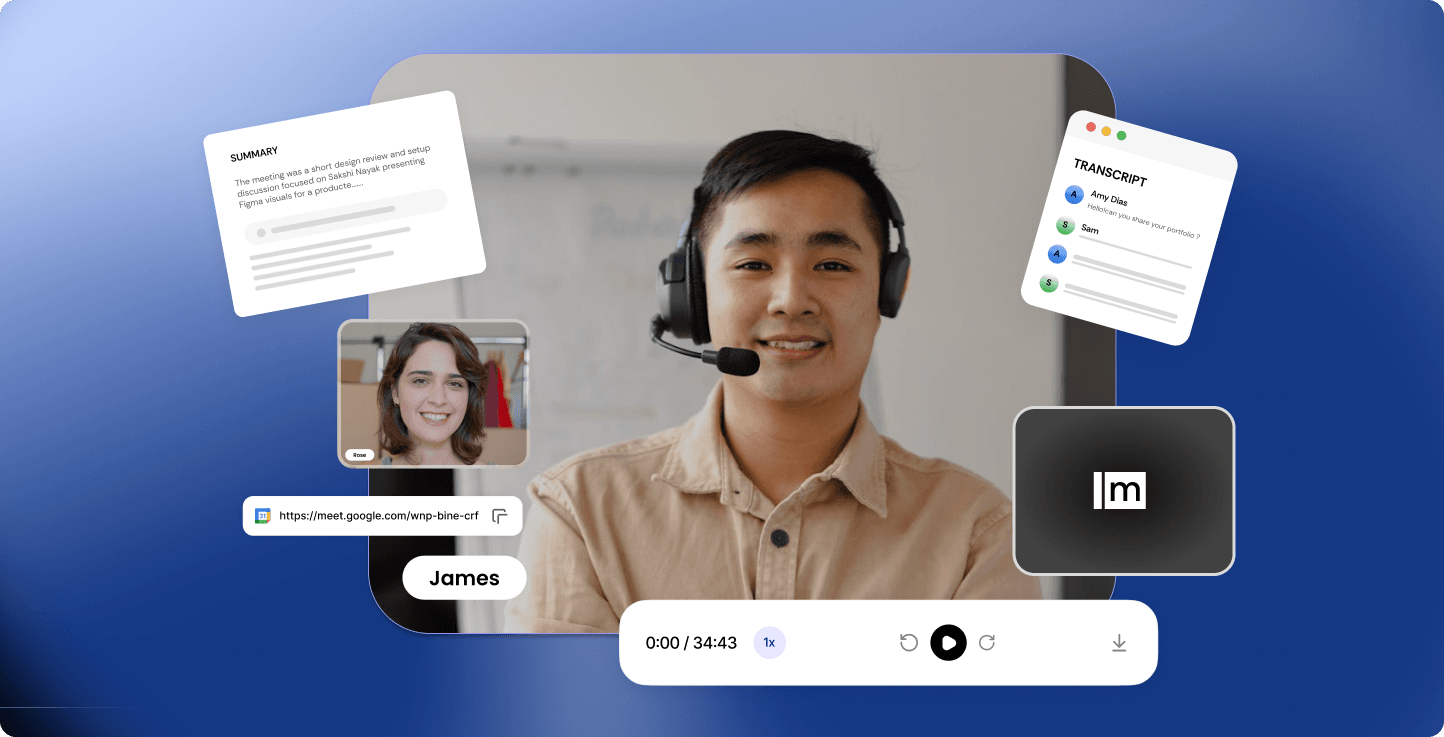
How to Record Meetings Using Meetbook
Step 1: Log In
Go to the Meetbook and Login using your credentials. If you don't have one yet, click on Create a New One to create your account.
Step 2: Start the Notetaker
Once you are on your Dashboard, look at the top right corner and click the button labeled "Send Notetaker."

Step 3: Paste Your Meeting Link
A box will pop up. Paste your meeting link (Google Meet, Zoom, etc.) into the input and click the Record button.

Step 4: Admit the Bot to Your Meeting
Open your meeting window. You will see a request from "Meetbook" to join the call. Click Admit to let the bot in.
Note: If you aren't the host, just ask the host to "Admit" the Meetbook bot.

Step 5: Recording in Progress
That’s it! The Meetbook Notetaker is now recording. You can focus on your conversation while the bot handles the rest.

Step 6: Accessing Recorded Meeting
After the meeting ends, navigate to dashboard and click on the “My Meetings” tab present in the sidebar to access all your recorded meetings.Now click on the specific meeting to access it's summary, action items, recording etc.


