
Meetbook Chrome Extension Meeting Recorder
You are about to join a client call. The deck is ready, the agenda is solid, and then your stomach drops — nobody is taking notes. Two stakeholders who could not attend asked for a recording, and the intern who usually handles summaries is out sick.
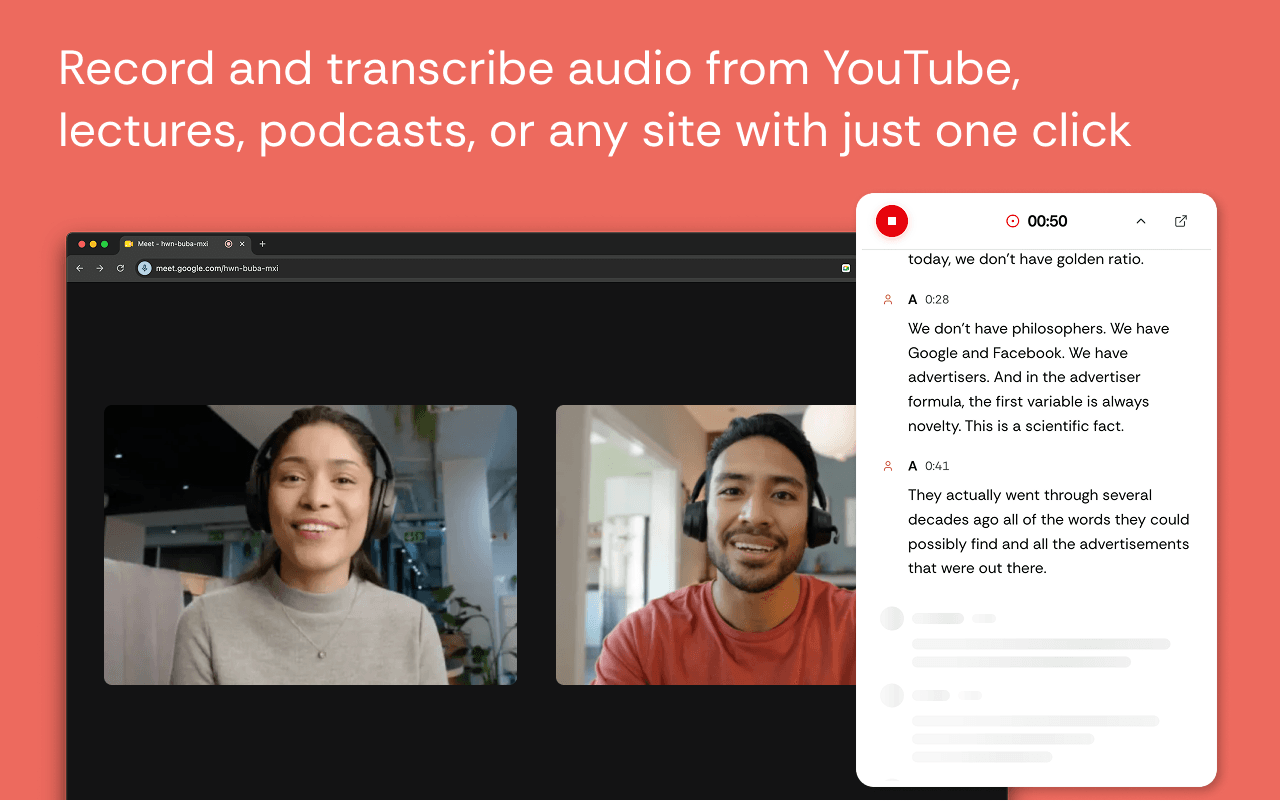
You open the Chrome extension toolbar, click the Meetbook icon, and press "Start recording." That is it. You join the meeting, the extension silently captures the tab audio, and a live transcript builds in the popup while people talk. When the meeting ends, you click "Stop" and a "See Summary" button takes you to meetbook.app where the AI-generated summary, action items, and speaker-labeled transcript are waiting.
No bot joins the call. No calendar integration required. No one else in the meeting even knows you are recording unless you tell them.
This is the actual Meetbook Chrome extension workflow. Here is exactly what it does, how to set it up, and what you get after every meeting.
Why Use a Chrome Extension to Record Meetings?
Platform-native recording sounds like the obvious answer — until you discover the paywall.
Google Meet's built-in recording requires a paid Google Workspace plan (Business Standard or higher, starting at roughly $12 per user per month). If your organization is on Workspace Business Starter or a free Google account, the record button simply is not there.
Zoom's cloud recording needs a Pro, Business, or Enterprise plan ($14.99/month minimum). Microsoft Teams recording requires a Microsoft 365 subscription with the correct admin policies enabled. Even then, recording may be disabled by your IT department.
Even when native recording is available, the output is usually just a video file and maybe an auto-generated transcript with no speaker labels, no summary, and no action items. You end the meeting and trade one problem (no recording) for another (a 90-minute video file nobody will ever watch).
A Chrome extension meeting recorder solves both problems: it works regardless of your plan tier, and it produces something actually useful on the other side — a structured summary with decisions, action items, and a searchable transcript.
What the Meetbook Chrome Extension Actually Does
The Meetbook Chrome extension is a tab-audio recorder that captures the sound from your browser and turns it into structured meeting notes. It works across Google Meet, Zoom, Microsoft Teams, and any other web-based meeting platform.
Here is the real workflow, step by step:
Manual start and stop. You are in complete control. Before or after joining a meeting, you click the Meetbook icon in your Chrome toolbar and press "Start recording." The extension begins capturing audio from the current browser tab. When the meeting ends, you click "Stop." There is no automation, no auto-detection, no surprise recording. You decide when it runs.
Tab audio capture via Chrome's tabCapture API. The extension uses Chrome's built-in audio capture to record whatever is playing in your browser tab — voices, presentations, screen-shared audio. It does not inject anything into the meeting, does not join as a participant, and does not interact with the meeting platform in any way. It silently listens to your browser tab.
Optional microphone toggle. By default, the extension captures tab audio only (the remote participants speaking through your browser). You can optionally toggle on microphone capture if you want your own voice included in the recording. This is useful when you are speaking from the same device and want the transcript to capture both sides of the conversation.
Real-time transcription in the popup panel. As the meeting progresses, speech is converted to text live with speaker identification. You can open the extension popup during the call and watch the transcript build line by line. Each speaker is labeled automatically, so you know who said what. The live transcript is private to you — it appears only in your extension popup, nowhere in the meeting itself.
Post-recording AI processing. After you click "Stop," the recording is processed on meetbook.app. Within minutes, you get a full transcript, an AI-generated meeting summary, and extracted action items with owners. You also get an email notification with direct links to everything.
The extension is free to install from the Chrome Web Store. Recording and AI features are available on Meetbook's free and paid plans.
How to Set It Up in 2 Minutes
Setup is straightforward and takes less than two minutes.
1. Install from the Chrome Web Store
Search for "Meetbook" in the Chrome Web Store, or navigate directly to the extension listing. Click "Add to Chrome" and confirm the permissions prompt.
The extension requests access to your browser tabs (so it can capture tab audio) and notifications (so it can alert you when your recording is done processing). It does not request calendar access, email access, or any meeting platform credentials.
Once installed, the Meetbook icon appears in your Chrome toolbar. Click it to sign in with your Google or Microsoft account.
2. Configure Your Audio Source
After signing in, you will see the recording controls. The default setting captures tab audio only — the voices of remote participants coming through your browser. If you want your own voice captured as well, toggle on the microphone option.
That is it for configuration. No calendar connection. No meeting platform setup. No bot provisioning. The extension is ready to record.
3. Start Recording
When you are ready to record a meeting, open the tab where the meeting is happening (or will happen), click the Meetbook extension icon, and press "Start recording."
The extension begins capturing audio from that tab. A recording indicator shows the status. You can minimize the popup and participate in the meeting normally. The extension works silently in the background.
When the meeting ends, click the Meetbook icon again and press "Stop recording." Processing begins automatically.
How It Works During a Meeting
Here is what the experience actually looks like during a call.
You join a Google Meet call. Before the first agenda item, you click the Meetbook extension icon and press "Start recording." The extension begins capturing the meeting audio from your browser tab. A live transcript starts building in the popup — you can check it any time by clicking the extension icon.
The transcript identifies speakers and timestamps each line. If someone mentions a key deliverable, you see it appear in the transcript in real time. If you need to reference something that was said earlier, you can scroll back through the popup transcript during the call.
You participate normally. There is no bot in the participant list. Nobody receives a chat notification. The meeting platform has no idea recording is happening — it is just a Chrome extension capturing your browser's audio output.
When the meeting wraps up, you click the extension icon and press "Stop recording." A "See Summary" button appears in the popup. Clicking it opens meetbook.app, where the AI is already processing your recording.
What You Get After Every Meeting
The recording itself is table stakes. What happens after you click "Stop" is where the extension earns its place on your toolbar.
Full Transcript with Speaker Labels
Every word spoken is captured in a searchable transcript. Each speaker is identified and labeled — no more guessing who said what. The transcript is time-stamped, so clicking any line jumps you to that exact moment in the recording.
Transcripts are available in 30+ languages. If your meeting mixes English and Spanish, the transcript captures both accurately.
AI-Generated Summary and Action Items
Meetbook processes the transcript and produces a structured summary that answers the questions you would ask a human note-taker:
- What decisions were made?
- What are the next steps, and who owns each one?
- What key points were raised that need follow-up?
Each action item is extracted with an owner and a due date when one was mentioned. These can be synced to your task manager — Notion, Jira, Slack, or wherever your team tracks work.
Searchable Meeting Archive
Every meeting you record is stored in your Meetbook library. The archive is full-text searchable — type any keyword, and Meetbook finds it across every transcript, summary, and action item you have ever captured.
This turns your meeting history from a black hole into a searchable knowledge base. When a client references "the pricing discussion we had in March," you type "pricing" and find it in seconds.
Chrome Extension vs. Native Recording
How does a dedicated Chrome extension meeting recorder stack up against native recording features?
Vs. Google Meet native recording. Native recording requires a paid Workspace plan (Business Standard or higher, roughly $12/user/month). The output is a video file and a basic transcript with no speaker labels. Meetbook's extension works on free Google accounts and produces structured summaries, action items, and speaker-labeled transcripts. If your organization already pays for Workspace Business Standard, native recording works for the video file — but you still need something to generate structured notes and action items from it.
Vs. Zoom cloud recording. Cloud recording requires a Pro plan at minimum ($14.99/month). It produces video, audio, and a transcript, but no meeting summary or action items. The Meetbook extension records regardless of your Zoom plan tier and gives you structured output immediately after the call.
Vs. Microsoft Teams recording. Teams recording requires a Microsoft 365 subscription with the right admin settings. Recordings land in OneDrive or SharePoint, and a transcript is generated for the meeting language only. Meetbook adds multi-language support, speaker-labeled transcripts, and AI-generated summaries.
Vs. other Chrome extension recorders. Several tools offer tab-audio recording and transcription via Chrome extension. Meetbook differentiates in a few ways:
- Real-time transcription in the popup panel during the call, not just after it ends
- Speaker identification that labels who said what, not just a wall of text
- Post-meeting AI that extracts decisions and action items with owners, not just a transcript dump
- Integrations that push summaries and action items to Salesforce, HubSpot, Notion, Slack, and Jira — keeping your CRM and project tools in sync automatically
The right choice depends on your stack. If your team lives in a CRM, the auto-sync alone saves hours of manual data entry per rep per week.
FAQ: Meetbook Chrome Extension Meeting Recorder
Does the Meetbook Chrome extension work with Google Meet, Zoom, and Teams?
Yes. The extension captures tab audio, so it works with any web-based meeting platform — Google Meet, Zoom, Microsoft Teams, and any other conferencing tool that runs in your browser. There is no per-platform setup or configuration required.
Do I need a paid Google Workspace plan to record meetings?
No. The Meetbook Chrome extension records meetings regardless of your Google Workspace tier — including free Google accounts. This is one of the primary reasons people install a meeting recorder extension instead of relying on native recording features. You do need a Meetbook account (free tier available) to access the AI processing features.
Will other participants know the meeting is being recorded?
Not unless you tell them. The extension captures audio from your browser tab — it does not join the meeting, does not appear in the participant list, and does not post any notifications in the meeting chat. This puts the responsibility on you to follow your organization's recording policies and any applicable consent laws in your jurisdiction.
Can I use the Chrome extension without installing anything else?
The Chrome extension is the only required install for browser-based meetings. You sign in through the extension popup, and recording runs locally in your browser. AI processing happens on meetbook.app in the cloud — no desktop app, no drivers, no additional software required. Meetbook also offers desktop apps (Mac and Windows) and mobile apps (iOS and Android) for in-person meeting recording and system-audio capture, but none are required for the core recording and transcription workflow.
How long does it take to get the transcript and summary?
Processing begins the moment you click "Stop recording." Most meetings under an hour produce a full transcript within 5-10 minutes. The AI summary and action items typically arrive within 10-15 minutes. You get an email notification when everything is ready, with direct links to the transcript, summary, and recording.
Does the extension support microphone capture?
Yes. By default, the extension captures tab audio only (the remote participants you hear through your browser). You can toggle on microphone capture in the extension popup to include your own voice in the recording and transcript.
Ready to stop scrambling for notes before every call? Install the Meetbook Chrome extension from the Chrome Web Store, click the icon before your next meeting, and press Start. Everything will be captured.